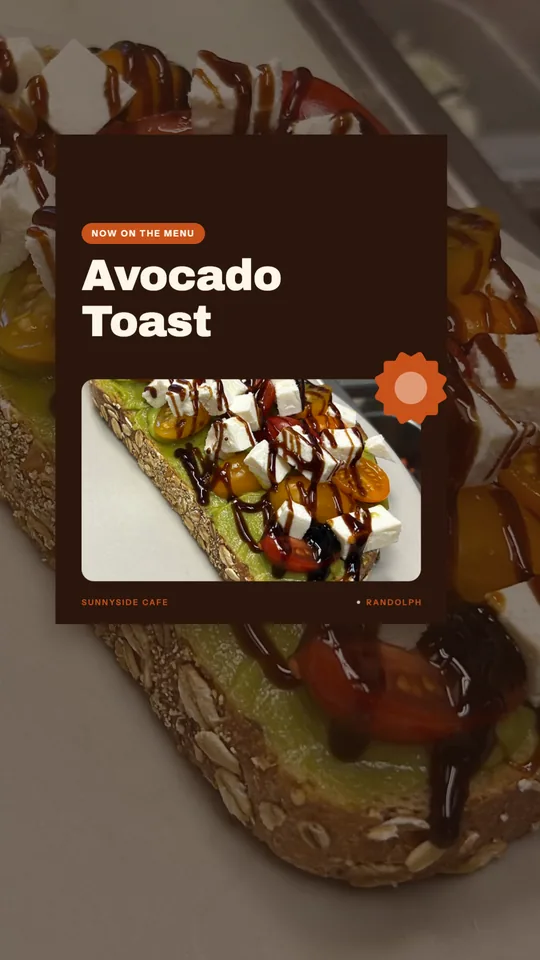
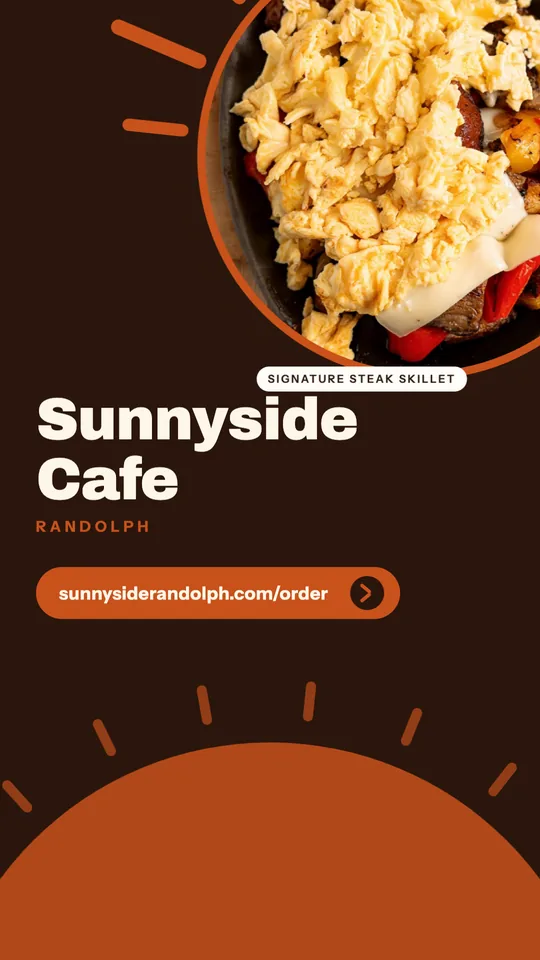
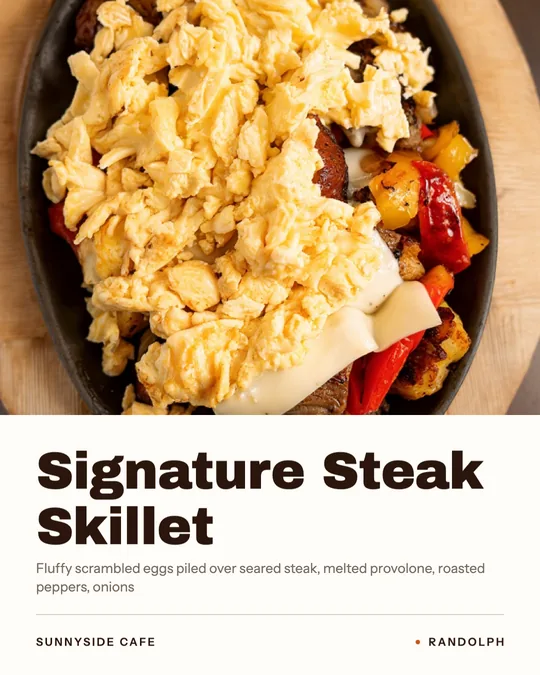
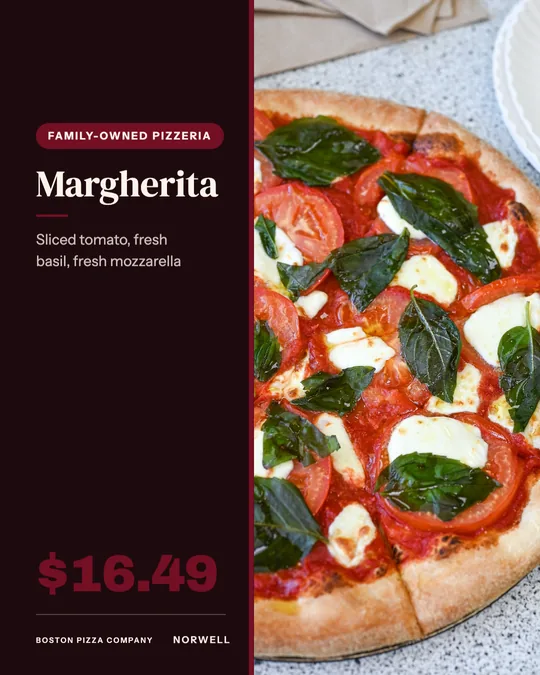
The tool matters less than the habit and the inputs. This page covers the formats to use, a simple weekly rhythm, how to write captions that sound like you, what to check before posting, and how to build posts in Servestack Studio. It also explains how to judge any free or best-of list when you are choosing a tool.
The formats worth making
Most restaurants only need three shapes, and each has a standard size.
- Feed post at 1080 by 1350 pixels (4:5): the most screen space in a feed, good for a dish or an announcement.
- Square at 1080 by 1080 pixels: reliable across Instagram, Facebook and a Google Business update.
- Story at 1080 by 1920 pixels (9:16): for same-day news such as a sold-out special, with text away from the top and bottom edges.
A weekly rhythm that fits a busy kitchen
Consistency beats volume. Three to four posts a week, planned in one sitting, is more sustainable than a daily push you abandon after two weeks. A simple pattern covers most needs.
- One dish post: a single plate, close up, with its name and one reason to order it.
- One offer or event post: the special, the night, or the deal, with the date.
- One people or place post: a team member, the kitchen at prep time, or the dining room before service.
- One story reminder on the day, linking to your ordering page or showing the doors open.
Captions that sound like a person
AI captions tend toward cheerful sameness. Edit them until they read the way you would say it across the counter. Lead with the dish or the news, not a greeting. Include the practical details: day, time, how to order. Add a location tag and a small number of relevant hashtags rather than a wall of them.
Never let a caption claim something untrue, such as a dish that is gone, a discount you are not offering or a review you did not receive.
Judging free and best-of tools
Lists of the best AI social media post generator tools mostly rank general tools. For a restaurant, ask four practical questions. Does it keep your logo and colors consistent? Can it use your real dish photos? Does it export the sizes above? Can you write your own words on the image? A free level is fine for testing, but check what it limits.
Mistakes to avoid
These are the slips that cost trust.
- Posting AI-made dishes that look nothing like your plate.
- Cramming a full menu into one image no one can read on a phone.
- Changing colors and fonts every week so nothing looks like you.
- Leaving out the date on an offer, so the post goes stale.
- Ignoring comments and messages that follow a post.
Build posts in Studio, step by step
Studio makes designs as a post, a story or a square, so one idea can run across your accounts.
- Save your brand profile once: restaurant name, logo and brand color, or import from your website.
- Ask the chat assistant for the post in plain language, such as a weekend brunch push or a slow Tuesday offer.
- Add your own dish photo, or use Brighten this photo or A new background to clean up one you already have.
- Choose post, story or square, and refine with follow-up requests until the wording is right.
- Check the details, then export and post.
Visuals that look like your restaurant
Consistency is what makes a feed feel professional. Choose one brand color, one or two fonts and a consistent way of placing your logo, then reuse them on every post. Use your real photos wherever you can. A tool that generates images from nothing can be useful for decoration, but a feed made of invented dishes erodes trust quickly.
Leave room around text so it survives the way phones crop images, and test the post at thumbnail size, since most people first see it small.
One idea, three formats
Make the idea once and adapt it. Take a weekend brunch special. The feed post shows the plate, the name and the hours. The story is the same plate with a line that says today until two. The square can go to a Google Business update with a link to order. The work is in the first version, and the other two are small edits.
Post ideas that do not run out
- A dish of the week, with the story of how it got on the menu.
- A behind-the-scenes prep shot before the doors open.
- A customer favorite, described in the way staff describe it.
- A reminder of hours around holidays.
- A simple question that invites replies, such as which side would you add.
Scheduling and replying
Plan the week in one sitting, then leave room for one unplanned post about whatever happens that day. When comments or messages arrive, answer within a day, since replies show the account is run by real people. Save your best-performing posts as a reference, and repeat what works instead of chasing every trend.
Tie posts to ordering
A post should end with a next step. Point it to your Servestack ordering page, which is commission-free, so the guest orders from you directly. Studio has its own signup at studio.servestack.ai, and usage is credit-based.